This is the multi-page printable view of this section. Click here to print.

Return to the regular view of this page.

Getting started

1 - Installation

1.1 - Ubuntu

Dependencies

  • Install the following packages in your system if they not available yet:

    1
    2
    3
    
    sudo apt install \
        build-essential \
        clang
    
  • Bazel:

    1
    2
    3
    4
    
    curl https://bazel.build/bazel-release.pub.gpg | sudo apt-key add -
    echo "deb [arch=amd64] https://storage.googleapis.com/bazel-apt stable jdk1.8" | sudo tee /etc/apt/sources.list.d/bazel.list
    sudo apt update
    sudo apt install bazel
    
  • LunarG Vulkan SDK:

    1
    2
    3
    4
    
    wget -qO - https://packages.lunarg.com/lunarg-signing-key-pub.asc | sudo apt-key add -
    sudo wget -qO /etc/apt/sources.list.d/lunarg-vulkan-1.3.211-focal.list https://packages.lunarg.com/vulkan/1.3.211/lunarg-vulkan-1.3.211-focal.list
    sudo apt update
    sudo apt install vulkan-sdk
    

    Verify that the SDK was successfully installed by running:

    1
    
    vulkaninfo
    
  • Python3 dependencies

    1
    
    sudo apt install python3-pip
    

Build C++ Libraries

Clone and compile Lluvia’s C++ libraries:

1
2
3
4
5
6
7
git clone https://github.com/jadarve/lluvia.git
cd lluvia

# install requirements listed in lluvia's root folder
sudo python3 -m pip install -r requirements.txt

bazel build //lluvia/cpp/...

Run the tests to verify that your compilation runs properly:

1
bazel test //lluvia/cpp/...

Python3 package

To build the Python3 package, execute the commands below from the repository’s top-level directory. You can create a virtual environment to isolate the installation:

1
2
bazel build //lluvia/python:lluvia_wheel
pip3 install bazel-bin/lluvia/python/lluvia-0.0.1-py3-none-any.whl

Open a Python3 interpreter and import lluvia:

1
2
3
import lluvia as ll

session = ll.createSession()

If the import completes successfully, lluvia is ready to use.

1.2 - Linux using docker

Install docker following the official documentation and the post installation guide.

Clone lluvia and build the container

1
2
3
4
git clone https://github.com/jadarve/lluvia.git
cd lluvia

docker build ci/ --tag="lluvia:local"

Run the container, mounting lluvia’s repository at /lluvia:

1
2
3
docker run \
    --mount type=bind,source="$(pwd)",target=/lluvia \
    -it --rm "lluvia:local" /bin/bash

Inside the container, build and test all of lluvia package:

1
2
3
cd lluvia
bazel build //...
bazel test --test_output=errors //...

1.3 - Raspberry Pi 4

Raspberry Pi config

OS Installation

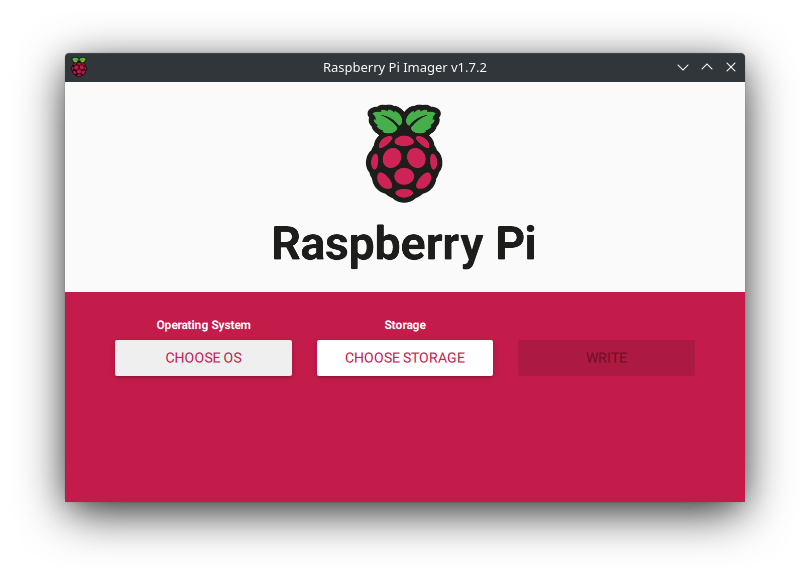
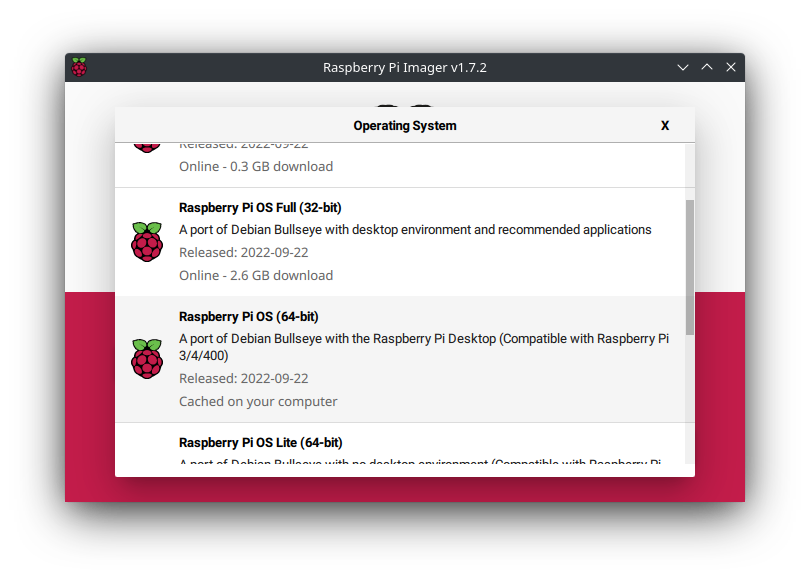
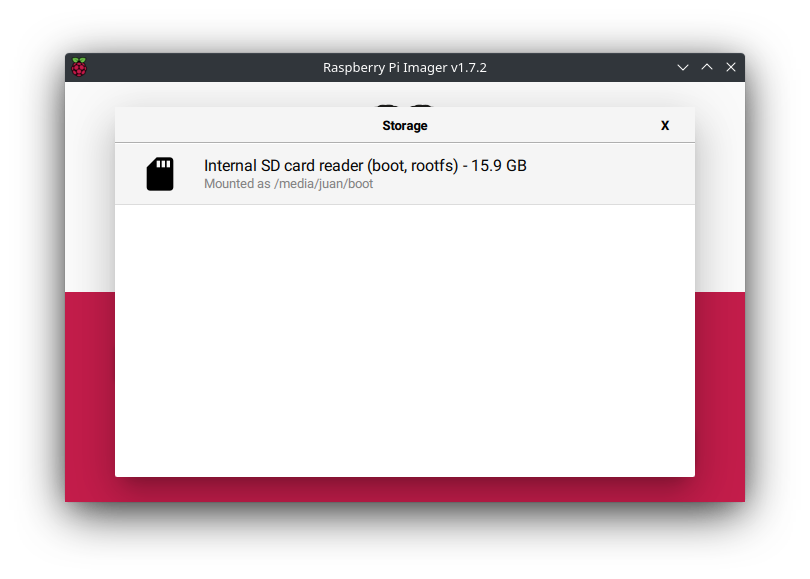
On the desktop machine, download the Raspberry Pi Imager and install a fresh version of the operating system in a micro SD card.

1
sudo apt install rpi-imager

Go to extra settings and enable SSH access, configure the WiFi, if needed. Click in write and wait for the process to complete.

Insert the micro SD card in the RPi and next, update and upgrade the operating system:

1
2
3
4
sudo apt update
sudo apt upgrade

sudo reboot

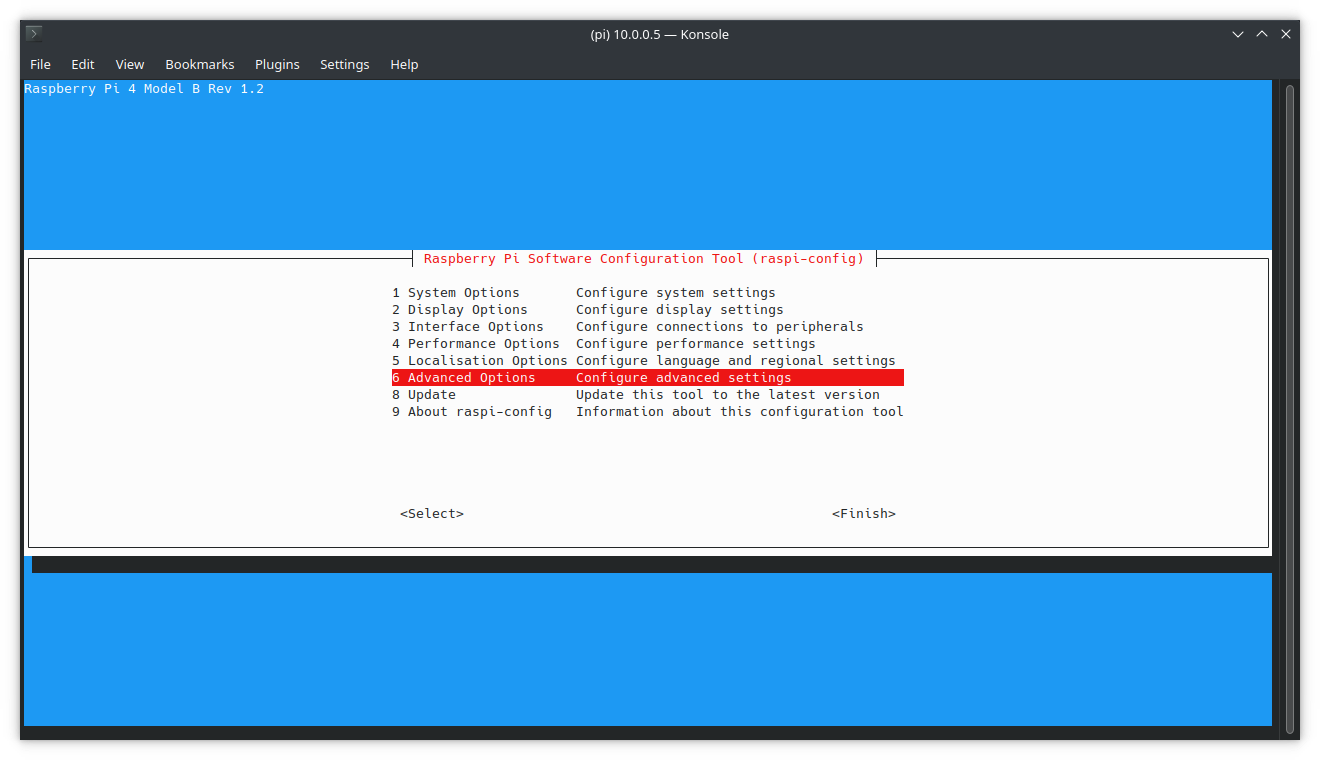
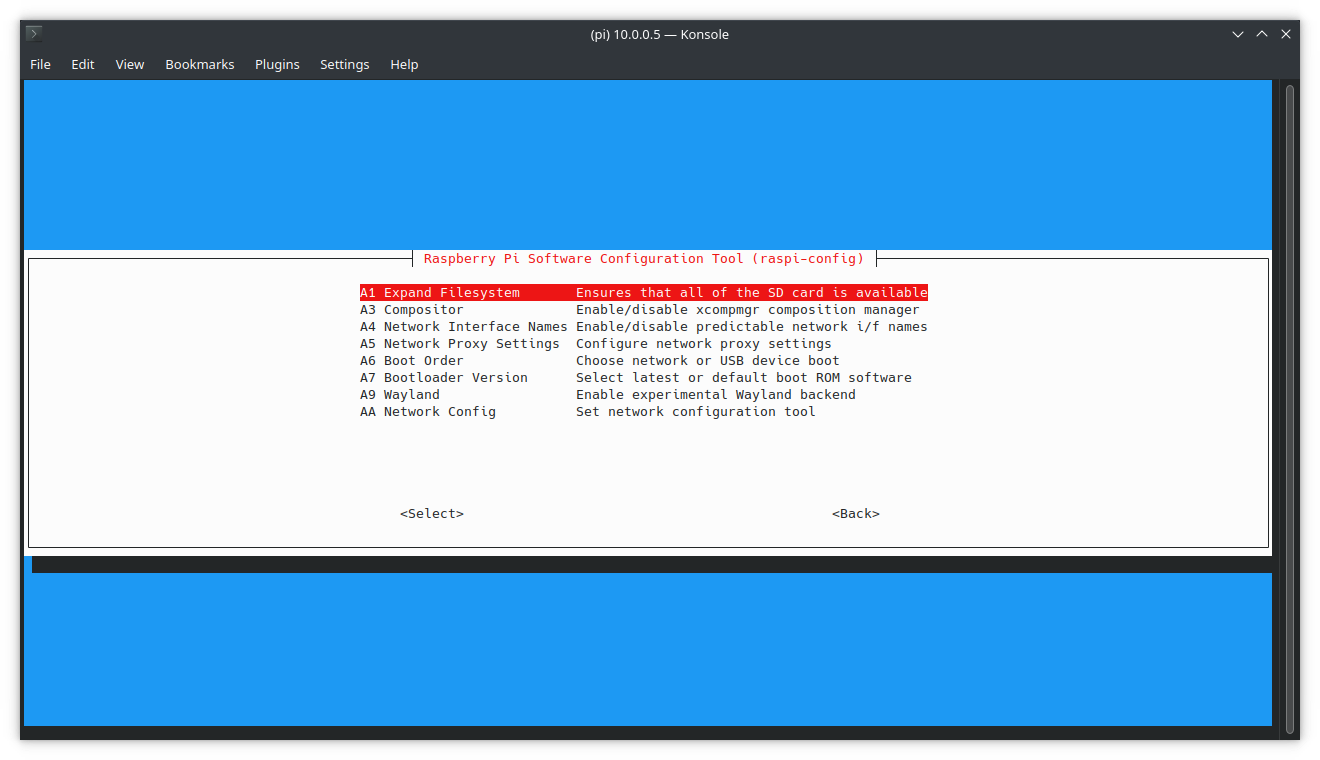
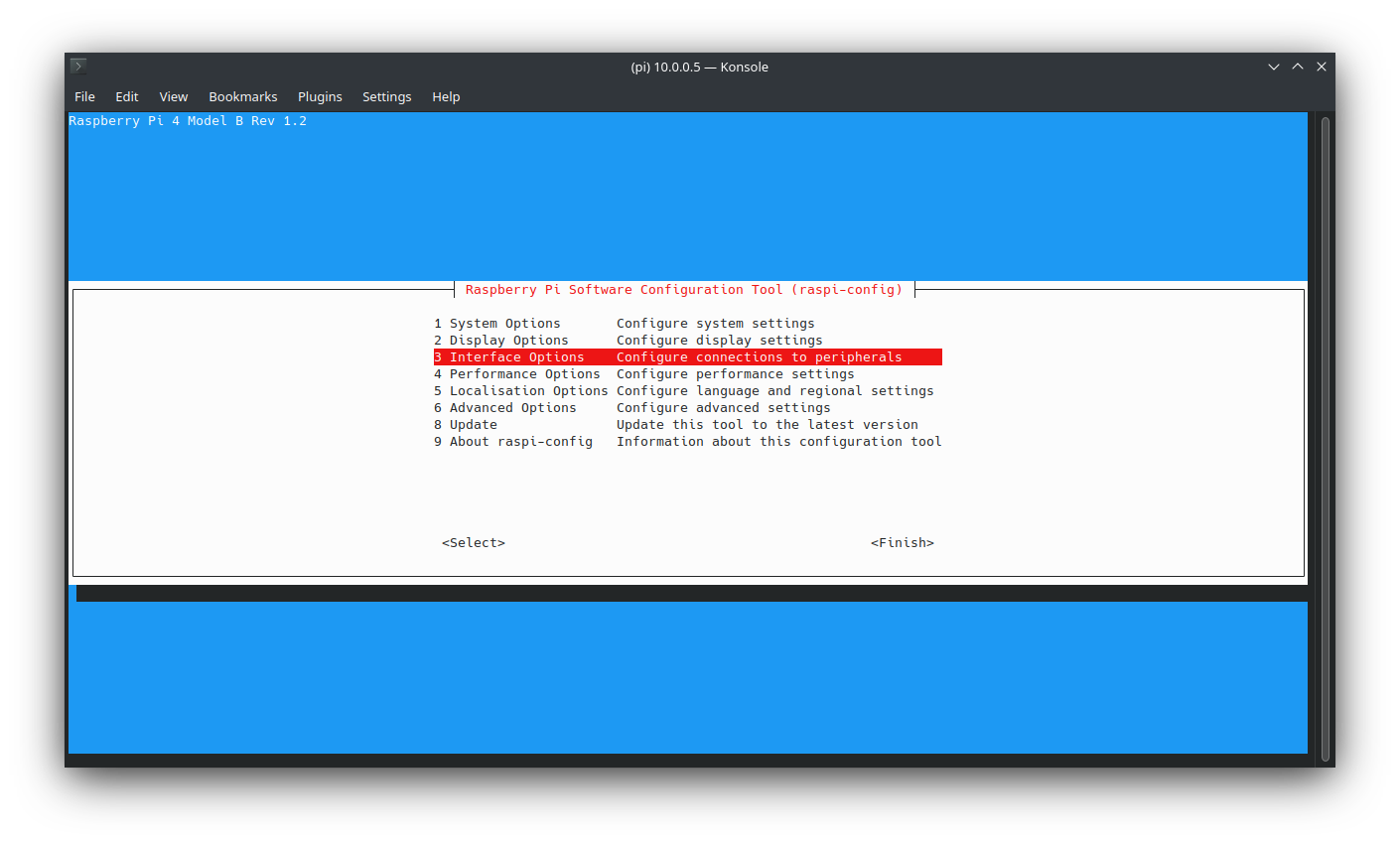
Expand storage

1
sudo raspi-config

1
sudo reboot

Increase swap memory

Some of the instructions bellow require more memory than the one available in the RPi4. For this, it is recommended to increase the SWAP memory available to the system so that compilation does not fail unexpectedly. Open the /sbin/dphys-swapfile and /etc/dphys-swapfile, and edit the line CONF_MAXSWAP=<some_value> to 4096. After it, reboot the RPi.

 1
 2
 3
 4
 5
 6
 7
 8
 9
10
11
12
13
14
# unmount the swap
sudo dphys-swapfile swapoff

# edit the swap configuration to:
# CONF_SWAPSIZE=2048 
# CONF_MAXSWAP=4096
sudo nano /sbin/dphys-swapfile
sudo nano /etc/dphys-swapfile

# configure with new values
sudo dphys-swapfile setup

# start swap
sudo dphys-swapfile swapon

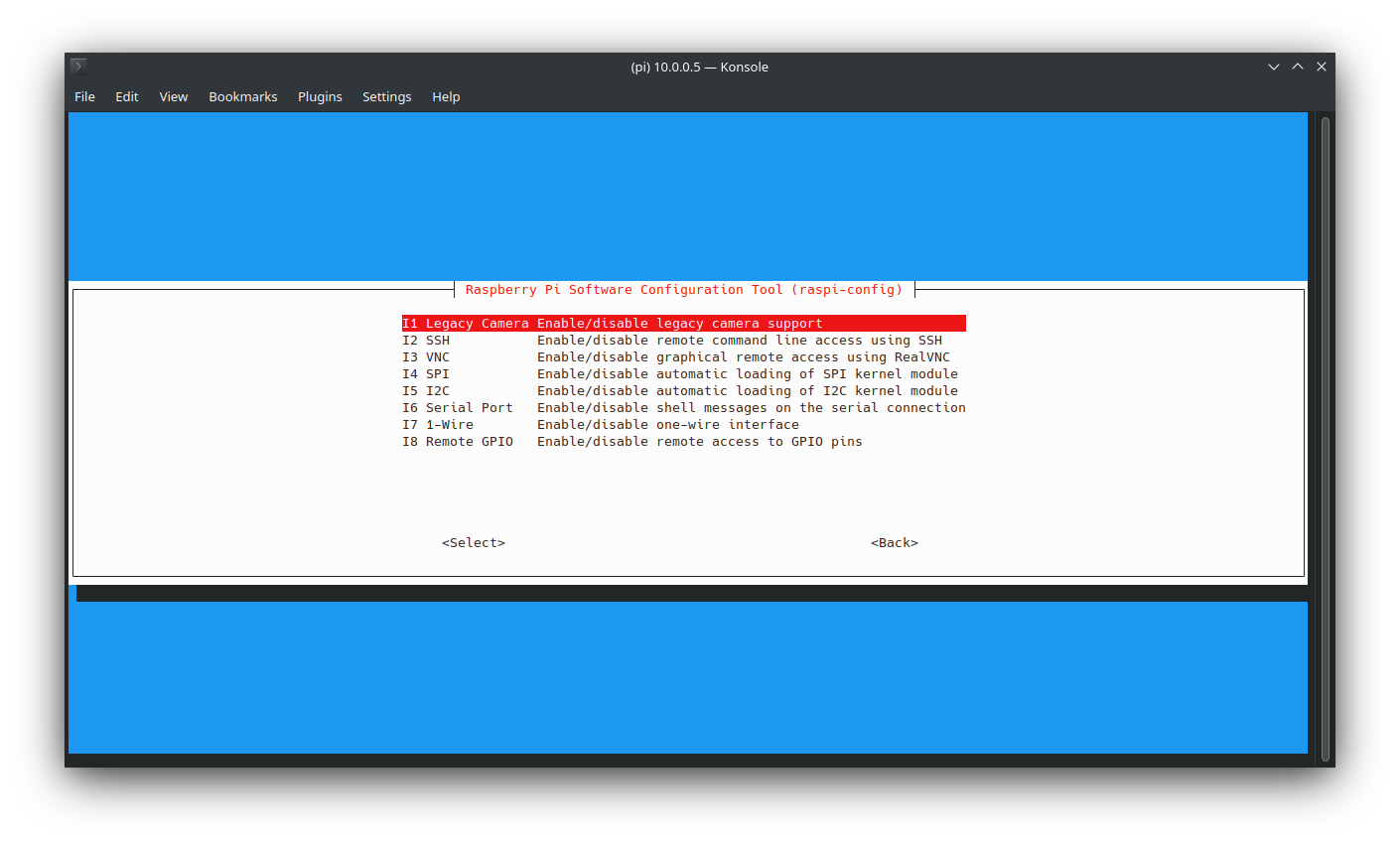
Camera module

If you have a camera module available, you can enable it by following the official guide

1
sudo raspi-config

1
sudo reboot

Vulkan SDK

Dependencies

 1
 2
 3
 4
 5
 6
 7
 8
 9
10
11
12
13
14
15
16
17
18
19
20
21
22
23
24
25
26
27
28
29
30
31
32
33
34
35
36
sudo apt install -y \
  bison \
  cmake \
  g++ \
  gcc \
  git \
  libglm-dev \
  liblz4-dev \
  libmirclient-dev \
  libpciaccess0 \
  libpng-dev \
  libwayland-dev \
  libx11-dev \
  libx11-xcb-dev \
  libxcb-dri3-0 \
  libxcb-dri3-dev \
  libxcb-ewmh-dev \
  libxcb-keysyms1-dev \
  libxcb-present0 \
  libxcb-randr0-dev \
  libxml2-dev \
  libxrandr-dev \
  libzstd-dev \
  mesa-vulkan-drivers \
  ninja-build \
  ocaml-core \
  pkg-config \
  python \
  python3 \
  python3-distutils \
  qt5-qmake \
  qtbase5-dev \
  qtbase5-dev-tools \
  qtcreator \
  vulkan-tools
  wayland-protocols

Build and install

Download and build the Vulkan SDK

 1
 2
 3
 4
 5
 6
 7
 8
 9
10
11
12
13
14
15
16
17
18
19
20
21
22
23
24
25
26
27
28
29
30
31
32
33
34
35
36
mkdir -p ~/local/vulkan
cd ~/local/vulkan

wget -O vulkansdk.tar.gz \
  https://sdk.lunarg.com/sdk/download/1.3.231.2/linux/vulkansdk-linux-x86_64-1.3.231.2.tar.gz

tar -xvf vulkansdk.tar.gz

# remove archive to save space
rm vulkansdk.tar.gz

cd 1.3.231.2

# remove prebuilt x86_64 libraries are not needed in the RPi
rm -rf x86_64

# build the SDK

./vulkansdk -j 4 glslang
./vulkansdk -j 4 vulkan-headers
./vulkansdk -j 4 vulkan-loader
./vulkansdk -j 2 vulkan-validationlayers  # this one consumes all the RAM and uses SWAP memory
./vulkansdk -j 4 vulkan-tools
./vulkansdk -j 4 vulkantools
./vulkansdk -j 4 shaderc
./vulkansdk -j 4 spirv-headers
./vulkansdk -j 4 spirv-tools
./vulkansdk -j 4 spirv-cross
./vulkansdk -j 4 gfxreconstruct
./vulkansdk -j 4 spirv-reflect
./vulkansdk -j 4 vulkan-extensionlayer
./vulkansdk -j 4 vulkan-profiles
./vulkansdk -j 4 DirectXShaderCompiler
./vulkansdk -j 4 volk
./vulkansdk -j 4 VulkanMemoryAllocator
./vulkansdk -j 4 VulkanCapsViewer

Configure the VULKAN_SDK environment variable permanently in the system:

1
2
3
4
5
6
# edit .bashrc or .zshrc accordingly
nano .bashrc

# include the following environment variables at the end of the file
export VULKAN_SDK=~/local/vulkan/1.3.231.2/aarch64                                          
export PATH=$VULKAN_SDK/bin:$PATH

Reload the profile:

1
2
cd
source .bashrc

Install the SDK in the system:

1
2
3
4
5
6
7
sudo cp -r $VULKAN_SDK/include/vulkan/ /usr/local/include/
sudo cp -P $VULKAN_SDK/lib/libvulkan.so* /usr/local/lib/
sudo cp $VULKAN_SDK/lib/libVkLayer_*.so /usr/local/lib/
sudo mkdir -p /usr/local/share/vulkan/explicit_layer.d
sudo cp $VULKAN_SDK/etc/vulkan/explicit_layer.d/VkLayer_*.json /usr/local/share/vulkan/explicit_layer.d

sudo ldconfig

OpenCV

Dependencies

 1
 2
 3
 4
 5
 6
 7
 8
 9
10
11
12
13
14
15
16
17
18
19
20
21
22
23
24
25
26
27
28
29
30
31
32
33
34
35
sudo apt install -y \
    build-essential \
    cmake \
    gfortran \
    gstreamer1.0-gl \
    gstreamer1.0-gtk3 \
    libatlas-base-dev \
    libavcodec-dev \
    libavformat-dev \
    libblas-dev \
    libcanberra-gtk* \
    libdc1394-22-dev \
    libgif-dev
    libgstreamer-plugins-base1.0-dev \
    libgstreamer1.0-dev \
    libgtk-3-dev \
    libgtk2.0-dev \
    libhdf5-dev \
    libjasper-dev \
    libjpeg-dev \
    liblapack-dev \
    libopenblas-dev \
    libpng-dev \
    libswscale-dev \
    libtbb-dev \
    libtbb2 \
    libtiff-dev \
    libv4l-dev \
    libx264-dev \
    libxvidcore-dev \
    pkg-config \
    protobuf-compiler \
    python3-dev \
    python3-numpy \
    unzip

Build

 1
 2
 3
 4
 5
 6
 7
 8
 9
10
11
12
13
14
15
16
17
18
19
20
21
22
23
24
25
26
27
28
29
30
31
32
33
34
35
36
37
38
39
40
41
42
43
44
45
46
47
48
49
50
mkdir -p ~/local/opencv && cd ~/local/opencv

# Download and unpack sources
wget -O opencv_contrib.zip https://github.com/opencv/opencv_contrib/archive/4.5.2.zip
wget -O opencv.zip https://github.com/opencv/opencv/archive/4.5.2.zip

unzip opencv.zip
unzip opencv_contrib.zip

mv opencv-4.5.2 opencv
mv opencv_contrib-4.5.2 opencv_contrib

# remove archives
rm opencv.zip
rm opencv_contrib.zip

# Create build directory and switch into it
mkdir -p opencv/build && cd opencv/build

# Configure
cmake -D CMAKE_BUILD_TYPE=RELEASE \
-D CMAKE_INSTALL_PREFIX=/usr/local \
-D OPENCV_EXTRA_MODULES_PATH=~/local/opencv/opencv_contrib/modules \
-D ENABLE_NEON=ON \
-D WITH_OPENMP=ON \
-D WITH_OPENCL=OFF \
-D BUILD_ZLIB=ON \
-D BUILD_TIFF=ON \
-D WITH_FFMPEG=ON \
-D WITH_TBB=ON \
-D BUILD_TBB=ON \
-D BUILD_TESTS=OFF \
-D WITH_EIGEN=OFF \
-D WITH_GSTREAMER=ON \
-D WITH_V4L=ON \
-D WITH_LIBV4L=ON \
-D WITH_VTK=OFF \
-D WITH_QT=OFF \
-D OPENCV_ENABLE_NONFREE=ON \
-D INSTALL_C_EXAMPLES=OFF \
-D INSTALL_PYTHON_EXAMPLES=OFF \
-D BUILD_opencv_python3=TRUE \
-D OPENCV_GENERATE_PKGCONFIG=ON \
-D BUILD_EXAMPLES=OFF ..

# Build
make -j 4

# Install
sudo make install

Lluvia

Bazel

1
2
3
4
wget -O bazel https://github.com/bazelbuild/bazel/releases/download/5.3.2/bazel-5.3.2-linux-arm64

chmod +x bazel
sudo mv bazel /usr/local/bin

Build and install C++ and Python packages

Install clang compiler

1
sudo apt install -y clang

Clone and build Lluvia

 1
 2
 3
 4
 5
 6
 7
 8
 9
10
11
12
13
14
git clone https://github.com/jadarve/lluvia.git
cd lluvia

# install requirements listed in lluvia's root folder
sudo python3 -m pip install -r requirements.txt

bazel build //lluvia/cpp/...

# Run the tests to verify runtime is configured propertly
bazel test //lluvia/cpp/...

# Build and install the python wheel
bazel build //lluvia/python:lluvia_wheel
python3 -m pip install bazel-bin/lluvia/python/lluvia-0.0.1-py3-none-any.whl

Examples

With the Raspberry Pi camera module installed, it is possible to run the webcam demo located at samples/webcam/webcam.py. The command below configures the camera to output images at 320x240 resolution and fed to the webcam/HornSchunck container node, defined in the horn_schunck.lua script:

1
2
./samples/webcam/webcam.py --width=320 --height=240 \
  ./samples/webcam/scripts/horn_schunck.lua webcam/HornSchunck

The resulting color-encoded optical flow is displayed in a second window.

1.4 - Windows 10

Dependencies

  • Python2. This is needed for Bazel to be able to run Python binaries

    1
    2
    3
    
    choco install python2
    
    python -m pip install jinja2
    
  • Python3 dependencies

    1
    
    pip3 install cython numpy pytest jinja2 markupsafe
    
  • Vulkan SDK: follow the official installation instructions from LunarG.

  • Bazel: follow the official installation guide from bazel.build.

Clone and configure the repository

Clone the Lluvia repository from Github:

1
2
git clone https://github.com/jadarve/lluvia.git
cd lluvia

Open platform/values.bzl and change the paths to Python2 and Python3 according to your installation. Initially the file looks like this:

1
2
3
4
5
6
7
8
9
# Linux
python2_path_linux = "/usr/bin/python2"
python3_path_linux = "/usr/bin/python3"

# Windows
python2_path_windows = "C:/Python27/python.exe"

# get this value by running where.exe python3
python3_path_windows = "C:/hostedtoolcache/windows/Python/3.7.9/x64/python3.exe"

Build the C++ libraries

1
bazel build //lluvia/cpp/...

Run the tests to verify that your compilation runs properly:

1
bazel test //lluvia/cpp/...

Python3 package

To build the Python3 package, execute the commands below from the repository’s top-level directory.

1
2
bazel build //lluvia/python:lluvia_wheel
pip3 install bazel-bin/lluvia/python/lluvia-0.0.1-py3-none-any.whl

Open a Python3 interpreter and import lluvia package

1
2
3
import lluvia as ll

session = ll.createSession()

If the import completes successfully, lluvia is ready to use.

2 - Mediapipe integration

Mediapipe is a cross-platform framework for creating complex Computer Vision and Deep Learning pipelines both for offline and streaming applications. It includes support to OpenCV and TensorFlow. By integrating Lluvia in mediapipe, it is possible to leverage its runtime capabilities as well as the interfacing with other popular frameworks.

Setup

Follow the linux instructions to install the basic dependencies to build lluvia in your host machine.

Mediapipe

Clone the mediapipe repository in the same folder as lluvia.

1
2
git clone https://github.com/google/mediapipe.git
cd mediapipe

Setup Clang as default C++ compiler for mediapipe. Add the following line to mediapipe’s .bazelrc file

build:linux --action_env=CC=clang

Follow the installations instructions to configure OpenCV according to your installation. Also, enable GPU support. Once completed, run the hello_world application to check the build process:

1
2
3
4
export GLOG_logtostderr=1

bazel run --copt -DMESA_EGL_NO_X11_HEADERS --copt -DEGL_NO_X11 \
    //mediapipe/examples/desktop/hello_world:hello_world

the output should look like:

I20221006 15:04:52.196460 12142 hello_world.cc:57] Hello World!
I20221006 15:04:52.196496 12142 hello_world.cc:57] Hello World!
I20221006 15:04:52.196501 12142 hello_world.cc:57] Hello World!
I20221006 15:04:52.196537 12142 hello_world.cc:57] Hello World!
I20221006 15:04:52.196563 12142 hello_world.cc:57] Hello World!
I20221006 15:04:52.196588 12142 hello_world.cc:57] Hello World!
I20221006 15:04:52.196615 12142 hello_world.cc:57] Hello World!
I20221006 15:04:52.196640 12142 hello_world.cc:57] Hello World!
I20221006 15:04:52.196666 12142 hello_world.cc:57] Hello World!
I20221006 15:04:52.196691 12142 hello_world.cc:57] Hello World!

Modifications to embed Lluvia as mediapipe’s dependency

The next step is to include lluvia as a dependency of mediapipe. Append the configuration below to mediapipe’s WORKSPACE file to configure lluvia as a local_repository:

 1
 2
 3
 4
 5
 6
 7
 8
 9
10
11
12
13
14
15
16
17
18
19
20
21
22
23
24
25
26
27
28
29
30
31
32
33
34
35
36
37
38
39
40
41
###########################################################
# LLUVIA
###########################################################
local_repository(
    name = "lluvia",
    path = "../lluvia" # assuming lluvia was cloned in the same folder as mediapipe
)

load("@lluvia//lluvia/bazel:workspace.bzl", "lluvia_workspace")
lluvia_workspace()

# Python configuration
register_toolchains("@lluvia//platform:python_toolchain")

load("@rules_python//python:pip.bzl", "pip_repositories")
pip_repositories()

# Platform configuration
# Linux
load("@lluvia//platform/linux:python.bzl", "python_linux", "numpy_linux")
python_linux(name = "python_linux")
numpy_linux(name = "numpy_linux")

# Windows
load("@lluvia//platform/windows:python.bzl", "python_windows", "numpy_windows")
python_windows(name = "python_windows")
numpy_windows(name = "numpy_windows")

# Packaging rules
load("@ll_rules_pkg//:deps.bzl", "rules_pkg_dependencies")
rules_pkg_dependencies()

# Vulkan rules
load("@rules_vulkan//vulkan:repositories.bzl", "vulkan_repositories")
vulkan_repositories(
    android_use_host_vulkan_sdk = True
)

# Lua rules
load("@rules_lua//toolchains:repositories.bzl", "lua_repositories")
lua_repositories()

Rerun mediapipe’s hello_world binary again to confirm the new workspace configuration works:

1
2
3
4
export GLOG_logtostderr=1

bazel run --copt -DMESA_EGL_NO_X11_HEADERS --copt -DEGL_NO_X11 \
    //mediapipe/examples/desktop/hello_world:hello_world

Extra configuration for Android builds

Install Android Studio, SDK 33 and SDK 30, and the NDK 21 (r21e). Configure the ANDROID_HOME and ANDROID_NDK_HOME environment variables in your .bashrc or .zshrc file, for instance:

1
2
export ANDROID_HOME=~/local/Android/Sdk
export ANDROID_NDK_HOME=${ANDROID_HOME}/ndk/android-ndk-r21e

Install the default JDK and the ADB in the system:

sudo apt install default-jdk adb

WORKSPACE configuration

In addition to the WORKSPACE configuration mentioned above, add the following lines for Bazel to configure the Android SDK and NDK.

1
2
3
4
5
###########################################################
# ANDROID
###########################################################
android_sdk_repository(name = "androidsdk", api_level = 33, build_tools_version = "30.0.3")
android_ndk_repository(name = "androidndk", api_level=21)

lluvia-mediapipe repository

The lluvia-mediapipe project is an auxiliary repository containing the Calculators to interface with mediapipe. This repository needs to be cloned within mediapipe in order to consume its dependencies.

1
2
3
4
5
# clone lluvia-mediapipe inside mediapipe

# assuming you are in the in the root folder were mediapipe was cloned
cd mediapipe/mediapipe
git clone https://github.com/jadarve/lluvia-mediapipe.git

The directory structure for all repositories should look like:

lluvia                          <-- lluvia repository
mediapipe                       <-- mediapipe repository
├── BUILD.bazel
├── docs
├── LICENSE
├── MANIFEST.in
├── mediapipe                   <--
│   ├── BUILD
│   ├── calculators
│   ├── examples
│   ├── framework
│   ├── gpu
│   ├── ...
│   ├── lluvia-mediapipe        <-- lluvia-mediapipe repository
├── ...
├── .bazelrc
└── WORKSPACE

Next, run the lluvia_calculator_test target to verify the build and the runtime is correctly configured:

1
2
bazel test --copt -DMESA_EGL_NO_X11_HEADERS --copt -DEGL_NO_X11 \
    //mediapipe/lluvia-mediapipe/calculators:lluvia_calculator_test --test_output=all

LluviaCalculator

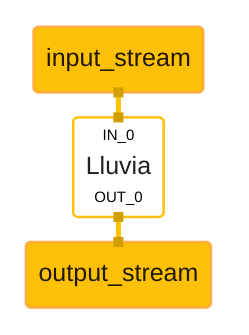
The lluvia-mediapipe repository declares a new LluviaCalculator. This calculator is in charge of initializing Lluvia, binding input and output streams from mediapipe to lluvia ports, and running a given compute pipeline.

The figure below illustrates a basic mediapipe graph utilizing lluvia, while the code below shows the graph description using protobuffer text syntax
 1
 2
 3
 4
 5
 6
 7
 8
 9
10
11
12
13
14
15
16
17
18
19
20
21
22
23
24
25
26
27
28
input_stream: "input_stream"
output_stream: "output_stream"

node: {
  calculator: "LluviaCalculator"
  input_stream: "IN_0:input_stream"
  output_stream: "OUT_0:output_stream"
  node_options {
      [type.googleapis.com/lluvia.LluviaCalculatorOptions]: {
          enable_debug: true
          library_path: "path to .zip node library file"
          script_path: "path to .lua script defining the main container node"
          container_node: "mediapipe/examples/Passthrough"
          
          input_port_binding:  {
              mediapipe_tag: "IN_0"
              lluvia_port: "in_image"
              packet_type: IMAGE_FRAME
          }

          output_port_binding:  {
              mediapipe_tag: "OUT_0"
              lluvia_port: "out_image"
              packet_type: IMAGE_FRAME
          }
      }
  }
}

where:

  1. The enable_debug flag tells whether or not the Vulkan debug extensions used by Lluvia should be loaded during session creation. This flag might be set to false in production applications to improve runtime performance.
  2. The library_path declare paths to node libraries (a .zip file) containing Lluvia nodes (Container and Compute). This attribute can be repeated several times.
  3. The script_path is the path to a lua script declaring a ContainerNode that Lluvia will instantiate as the “main” node to run inside the calculator.
  4. input_port_binding, maps mediapipe input tags to the main ContainerNode port. In the example above, mediapipe’s input tag IN_0 is mapped to lluvia’s in_image port.
  5. output_port_binding does the same for outputs of the ContainerNode. Both input and output bindings have a packet_type attribute indicating the expected type of the binding. Possible values are: IMAGE_FRAME and GPU_BUFFER.

Android Archive build

The lluvia-mediapipe repo contains an example Android Archive build target that contains the LluviaCalculator as well as some mediapipe graph examples. To build the archive, run:

1
2
3
4
bazel build -c opt \
    --host_crosstool_top=@bazel_tools//tools/cpp:toolchain \
    --fat_apk_cpu=arm64-v8a \
    //mediapipe/lluvia-mediapipe/java/ai/lluvia:lluvia_aar

The generated AAR file will be located at bazel-bin/mediapipe/lluvia-mediapipe/java/ai/lluvia/lluvia_aar.aar and can be exported into an Android project.

Examples

There are two example applications packed with lluvia-mediapipe

single_image

This app receives as command line arguments the path to an image file, a mediapipe graph definition and a lua script describing the ContainerNode to run inside of the LluviaCalculator.

The commands below execute the single_image app loading sample graphs packaged in the repository. The command assumes both lluvia and mediapipe repositories are cloned in the ${HOME}/git folder.

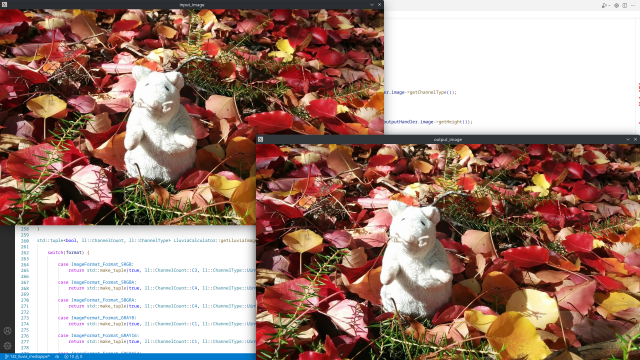
Passthrough

This graph simply copies the input image to the output, without any processing:

1
2
3
4
5
bazel run --copt -DMESA_EGL_NO_X11_HEADERS --copt -DEGL_NO_X11 \
    //mediapipe/lluvia-mediapipe/examples/desktop/single_image:single_image -- \
    --input_image=${HOME}/git/lluvia/lluvia/resources/mouse.jpg \
    --script_file=${HOME}/git/mediapipe/mediapipe/lluvia-mediapipe/examples/desktop/graphs/passthrough/script.lua \
    --graph_file=${HOME}/git/mediapipe/mediapipe/lluvia-mediapipe/examples/desktop/graphs/passthrough/graph.pbtxt

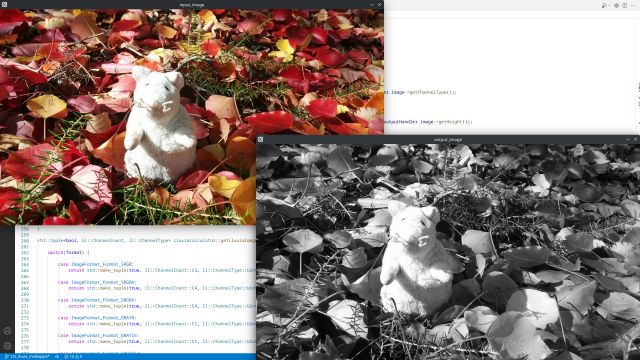
BGRA to Gray

This graph runs the lluvia/color/BGRA2Gray compute node to convert from the BGRA input to gray scale:

1
2
3
4
5
bazel run --copt -DMESA_EGL_NO_X11_HEADERS --copt -DEGL_NO_X11 \
    //mediapipe/lluvia-mediapipe/examples/desktop/single_image:single_image -- \
    --input_image=${HOME}/git/lluvia/lluvia/resources/mouse.jpg \
    --script_file=${HOME}/git/mediapipe/mediapipe/lluvia-mediapipe/examples/desktop/graphs/BGRA2Gray/script.lua \
    --graph_file=${HOME}/git/mediapipe/mediapipe/lluvia-mediapipe/examples/desktop/graphs/BGRA2Gray/graph.pbtxt

webcam

This application tries to open the default camera capture device in the host system using OpenCV VideoCapture class. Then it feeds the mediapipe graph the captured frames to be processed by the LluviaCalculator.

BGRA to Gray

1
2
3
4
bazel run --copt -DMESA_EGL_NO_X11_HEADERS --copt -DEGL_NO_X11 \
    //mediapipe/lluvia-mediapipe/examples/desktop/webcam:webcam -- \
    --script_file=${HOME}/git/mediapipe/mediapipe/lluvia-mediapipe/examples/desktop/graphs/BGRA2Gray/script.lua \
    --graph_file=${HOME}/git/mediapipe/mediapipe/lluvia-mediapipe/examples/desktop/graphs/BGRA2Gray/graph.pbtxt

Horn and Schunck optical flow

This is a more elaborate graph running inside the LluviaCalculator. First, the input image is converted from BGRA to gray scale, then is passes through the Horn and Schunck optical flow algorithm, and finally, the estimated optical flow is converted to RGBA (and then to BGRA) for visualization:

@startuml
skinparam linetype ortho

state LluviaCalculator as "LluviaCalculator" {

    state input_stream as "IN_0:input_stream" <<inputPin>>
    state output_stream as "OUT_0:output_stream" <<outputPin>>

    state ContainerNode as "mediapipe/examples/HornSchunck" {
        
        state in_image <<inputPin>>

        state BGRA2Gray
        state HS as "HornSchunck"
        state Flow2RGBA
        state RGBA2BGRA

        input_stream -down-> in_image

        in_image -down-> BGRA2Gray
        BGRA2Gray -down-> HS: in_gray
        HS -down-> Flow2RGBA: in_flow
        Flow2RGBA -down-> RGBA2BGRA: in_rgba

        RGBA2BGRA -down-> out_image <<outputPin>>
    }
    
  
  out_image -down-> output_stream <<outputPin>>
}

@enduml

The command to run the example is:

1
2
3
4
bazel run --copt -DMESA_EGL_NO_X11_HEADERS --copt -DEGL_NO_X11 \
    //mediapipe/lluvia-mediapipe/examples/desktop/webcam:webcam -- \
    --script_file=${HOME}/git/mediapipe/mediapipe/lluvia-mediapipe/examples/desktop/graphs/HornSchunck/script.lua \
    --graph_file=${HOME}/git/mediapipe/mediapipe/lluvia-mediapipe/examples/desktop/graphs/HornSchunck/graph.pbtxt

References